User Guide
Last updated: May 2026
This guide covers the NewLuxJob website (newluxjob.com) — the main way to use the platform — and the Telegram bot. The website is covered first.
🌐 Using the website
Sign up
Open newluxjob.com and click Sign up. Two options:
- Email + password — the classic way.
- Magic link — enter only your email, then open the message we send and press the Continue button. Just opening the link isn't enough — the button stops email security scanners from consuming it before you do.
Switch the interface language at the top of the page: EN / ES / FR / DE / LU / NL / PL / RU.
Complete your profile (required)
On your first login a 3-step wizard opens. Finish it — matching won't work until you do:
- Desired job title (e.g. Finance Director), key skills, and the countries you want to work in.
- The language for your emails and Telegram messages.
- Upload your CV (PDF, Word, TXT or a photo). You can skip this, but it's better to upload — the AI extracts your skills automatically.
Later you can refine your profile with seniority, salary expectations, home city and a search radius in km (to see jobs near you instead of across the whole country).
See your matches
The Matches section is your personal, AI-ranked list of vacancies. Each card shows the % fit with your profile, the company, location, salary (if listed) and a short reason why it matched.
- ★ Save a role, or ✕ hide one you're not interested in.
- Sort by best match or by date.
Just signed up and see nothing yet? Matching runs across tens of thousands of vacancies and takes a minute — refresh the page shortly and they'll appear.
AI tools on every vacancy
Open any match to use:
- ATS fit score — how well your CV matches this exact vacancy, shown as a percentage. Press Deep analysis for a detailed report: what matches, what's missing, and a short verdict. Your first analysis is free.
- Cover letter — written from your CV and tailored to the vacancy, in one click. 1 free.
The CV section also has a gap analysis — which skills to add for your target role. 1 free.
Make it yours
- Filters — keywords, locations, employment type, remote only.
- Email digest — daily (Premium), weekly, or off.
- Telegram — link your account to receive vacancies in the bot; it's the same profile across web and bot.
📱 Using the Telegram bot
1. Getting Started
Open the bot in Telegram and tap /start.
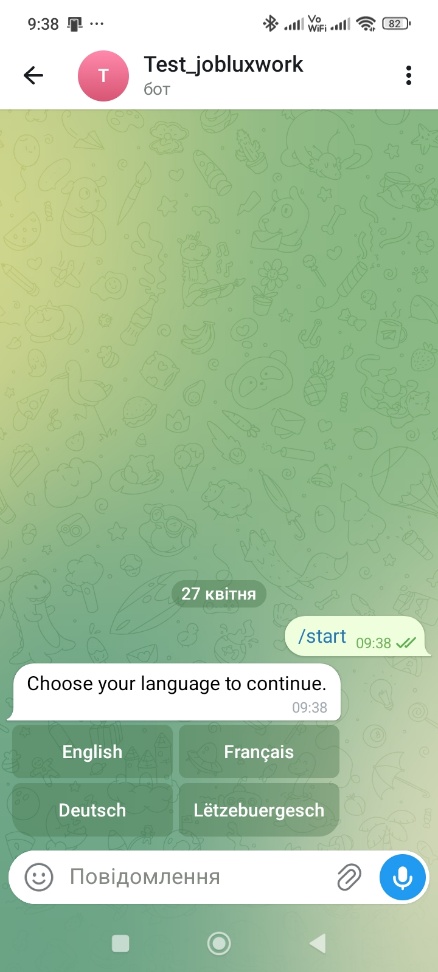
The bot will ask you to choose your language:
- English
- Français
- Deutsch
- Lëtzebuergesch
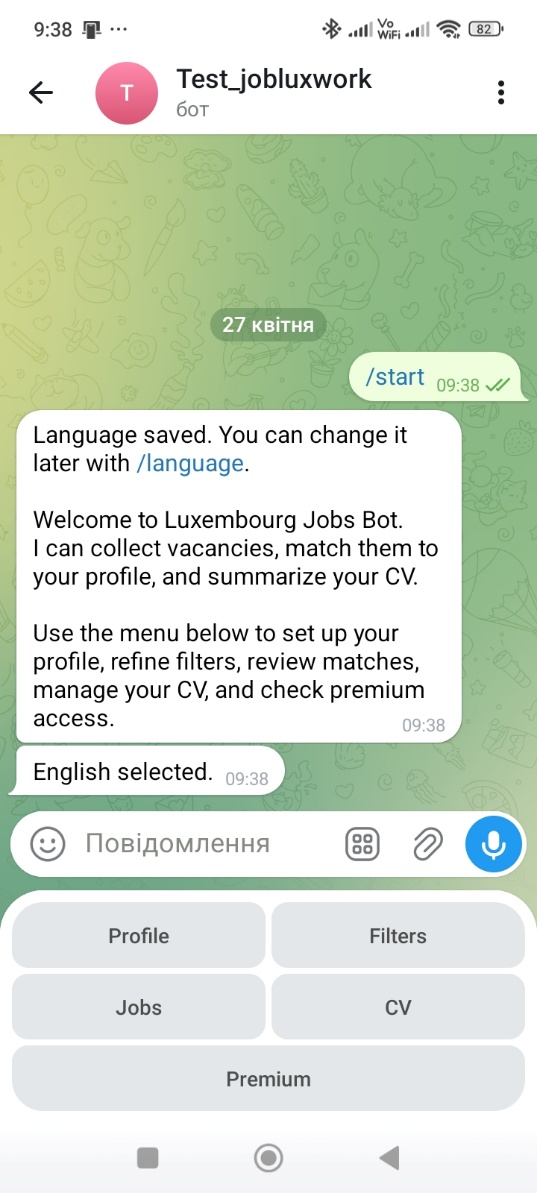
After you choose, the bot saves your preference and shows the main menu.
2. Main Menu
The main menu at the bottom of the bot has these sections:
- Profile — your user profile
- Filters — search filters for vacancies
- Jobs — browse matched vacancies
- CV — upload CV and use AI tools
- Premium — premium access
3. Setting Up Your Profile
Tap Profile. You'll see two main buttons:
- View Profile — see your current profile
- Edit Profile — update your profile
To set up your profile:
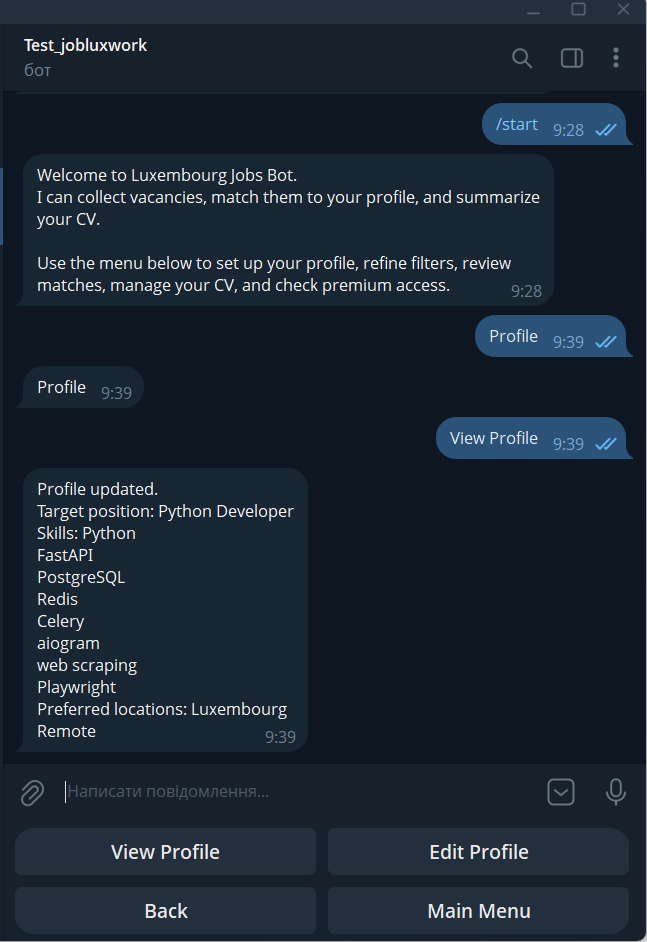
- Tap Edit Profile
- Enter your desired job title (e.g., Python Developer) and press Enter
- Add your skills (e.g., Python, FastAPI, PostgreSQL, Redis, Celery, aiogram, web scraping, Playwright) and press Enter
- Specify preferred locations (e.g., Luxembourg, Brussels, Amsterdam) and press Enter
- Specify your work format if prompted, and press Enter
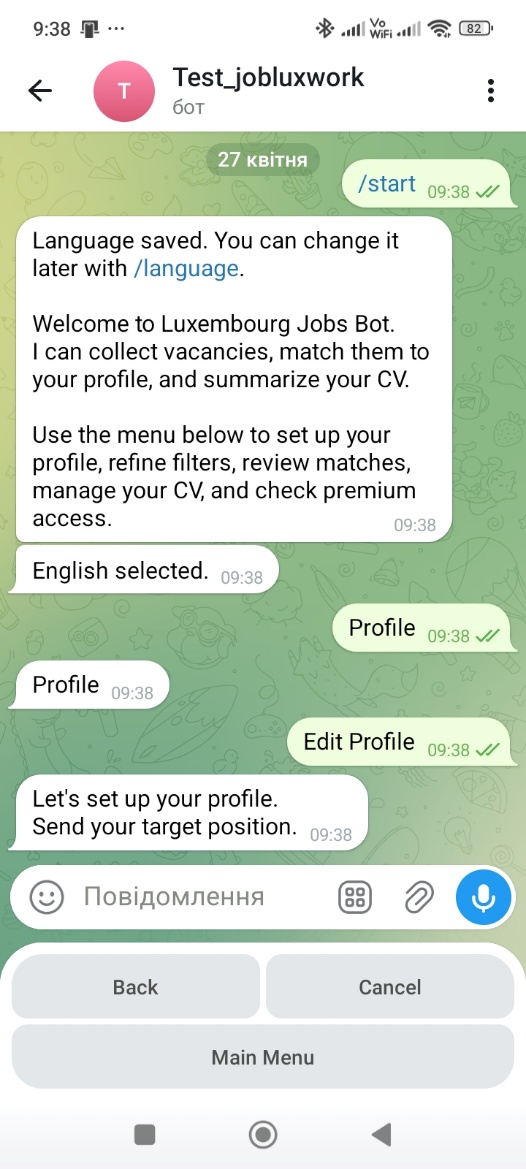
Once saved, the bot will show your updated profile. Tap Back to return.
4. Setting Up Filters
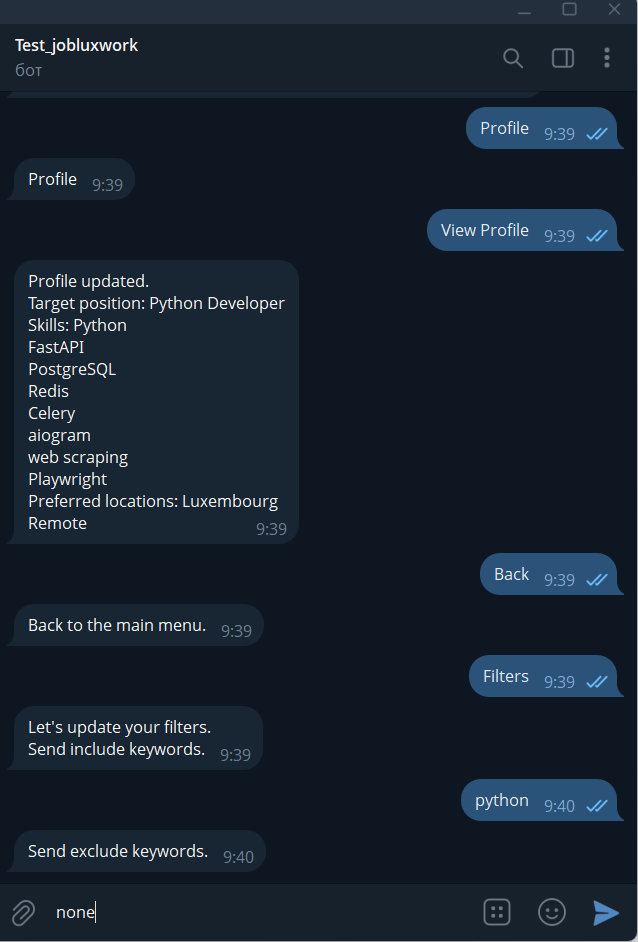
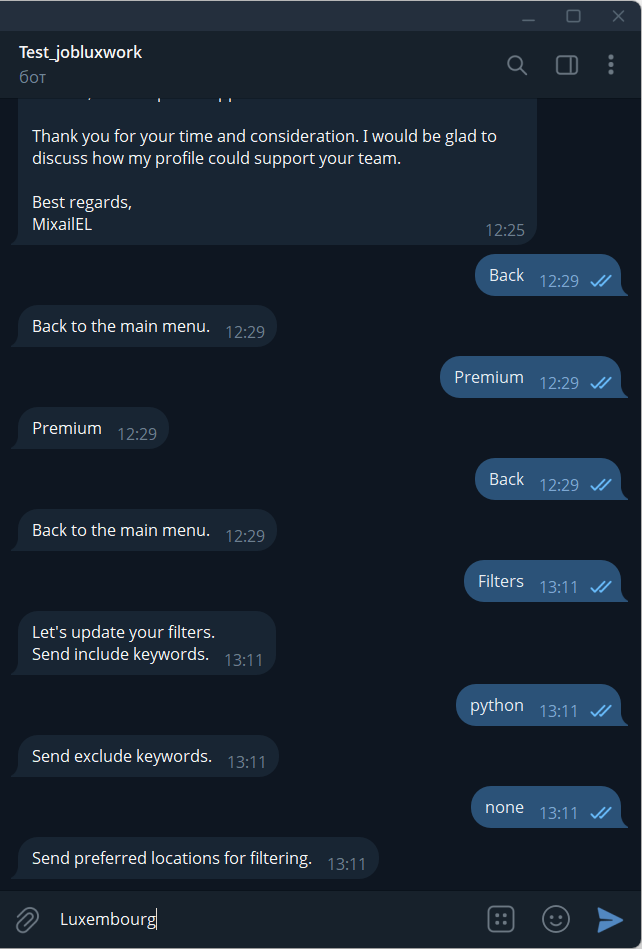
Tap Filters. The bot will ask you to provide:
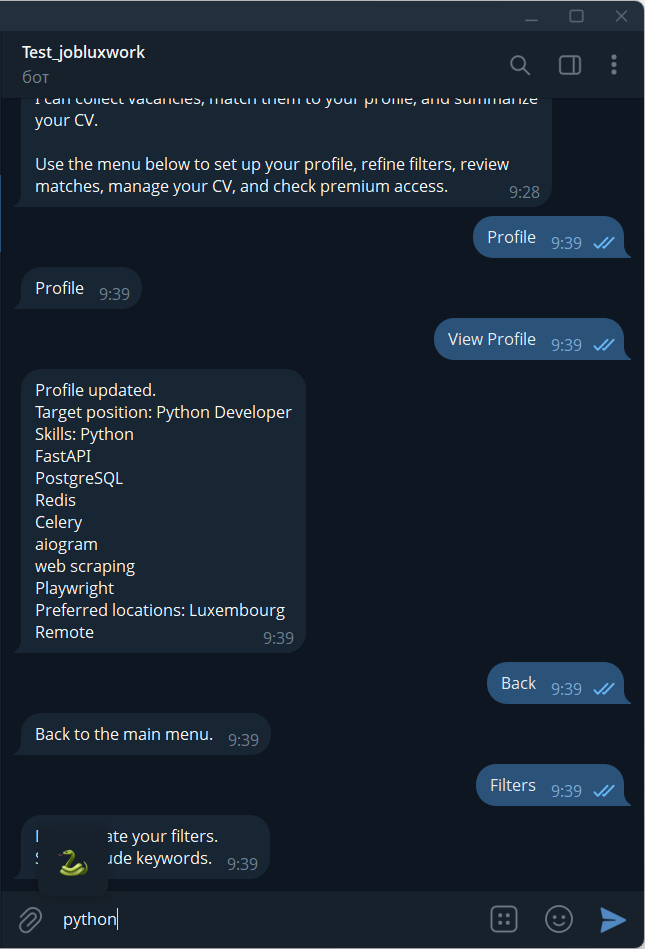
- Include keywords — terms to include in the search (e.g., python)
- Exclude keywords — terms to exclude. If none, type none
- Preferred locations — desired locations (e.g., Luxembourg, Brussels, Amsterdam)
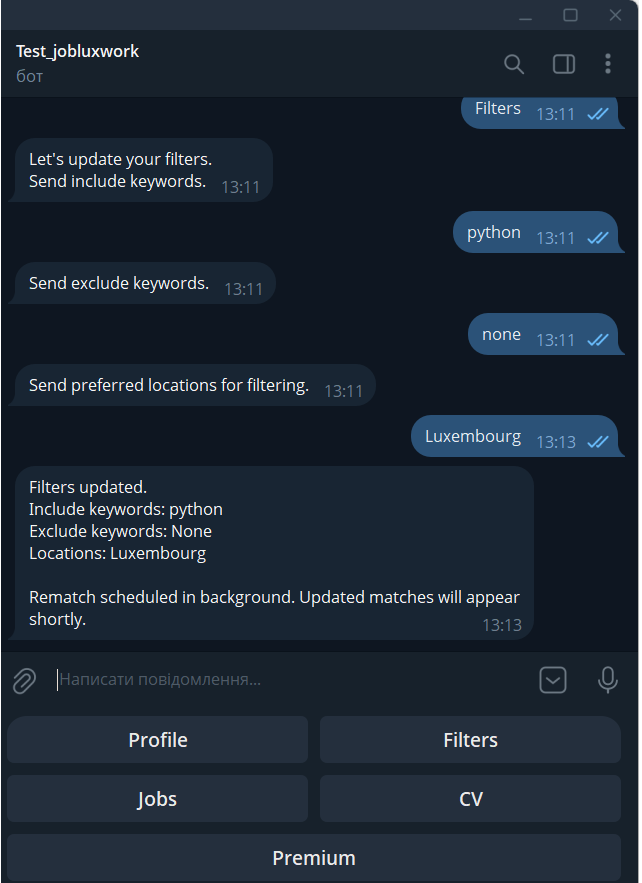
The bot will confirm that filters are updated and run a fresh job match in the background.
5. Browsing Jobs
Tap Jobs.
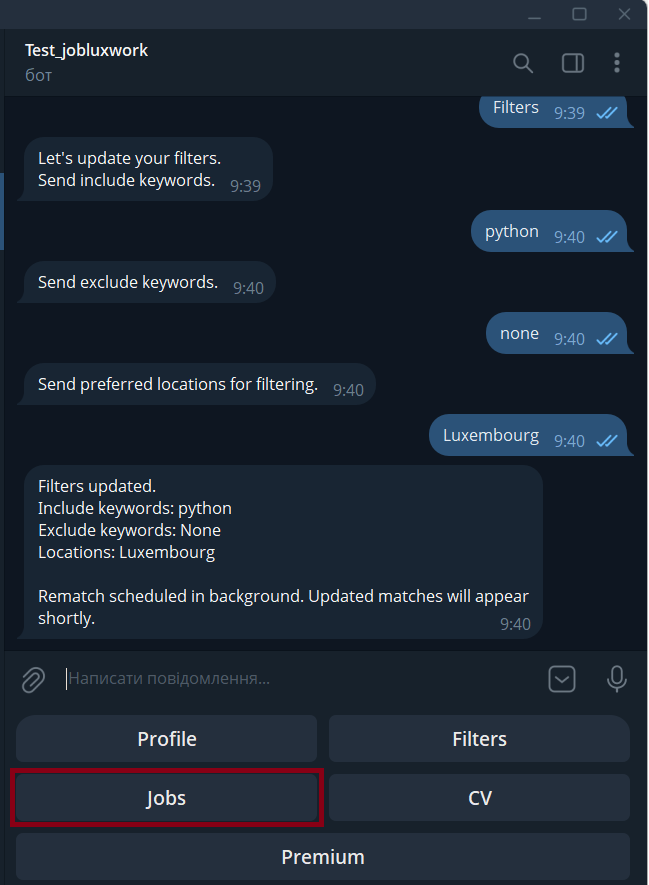
The bot shows a vacancy card with:
- Job title
- Company
- Location
- Source
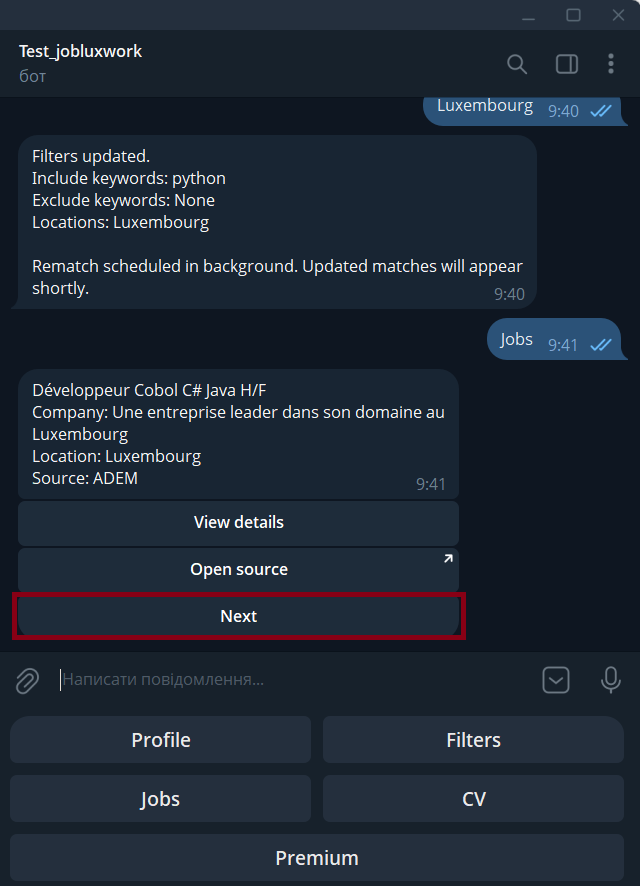
Below the card, you'll see these buttons:
- View details — open the full vacancy
- Open source — go to the original source
- Next — move to the next vacancy
You can browse all available vacancies one by one this way.
6. Uploading Your CV
Tap CV.
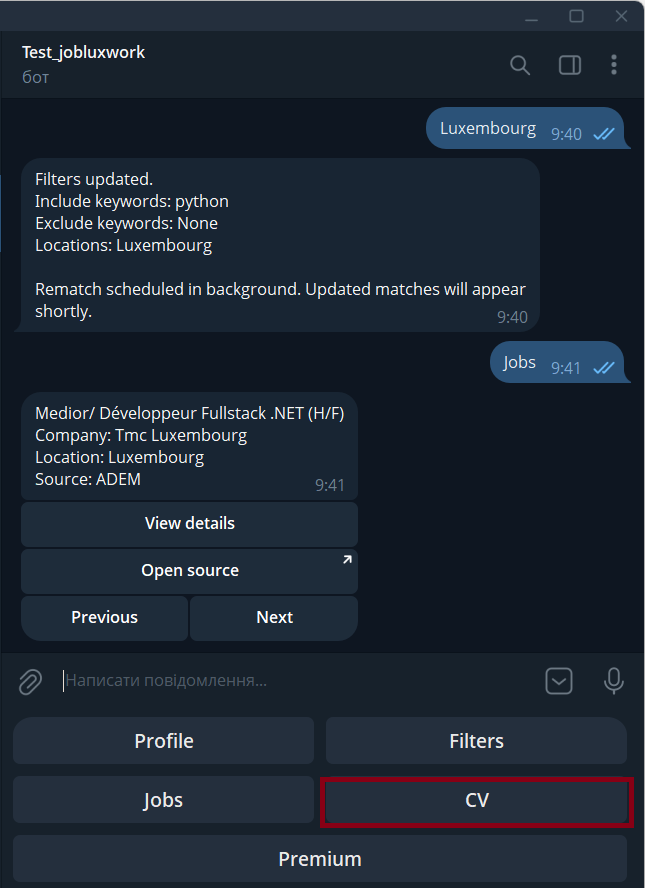
You'll see these buttons:
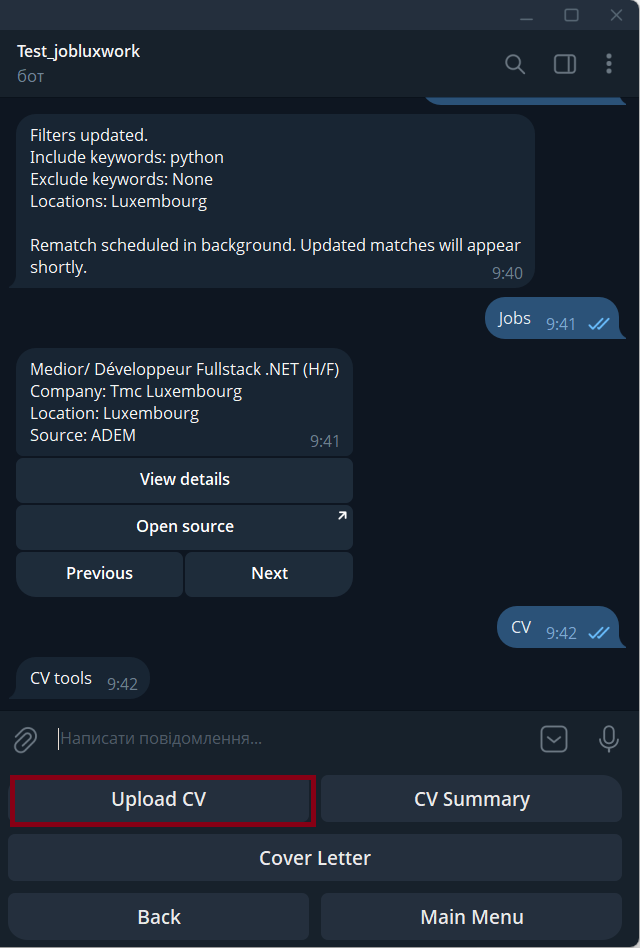
- Upload CV
- CV Summary
- Cover Letter
To upload your CV:
- Tap Upload CV
- Select a PDF file from your device
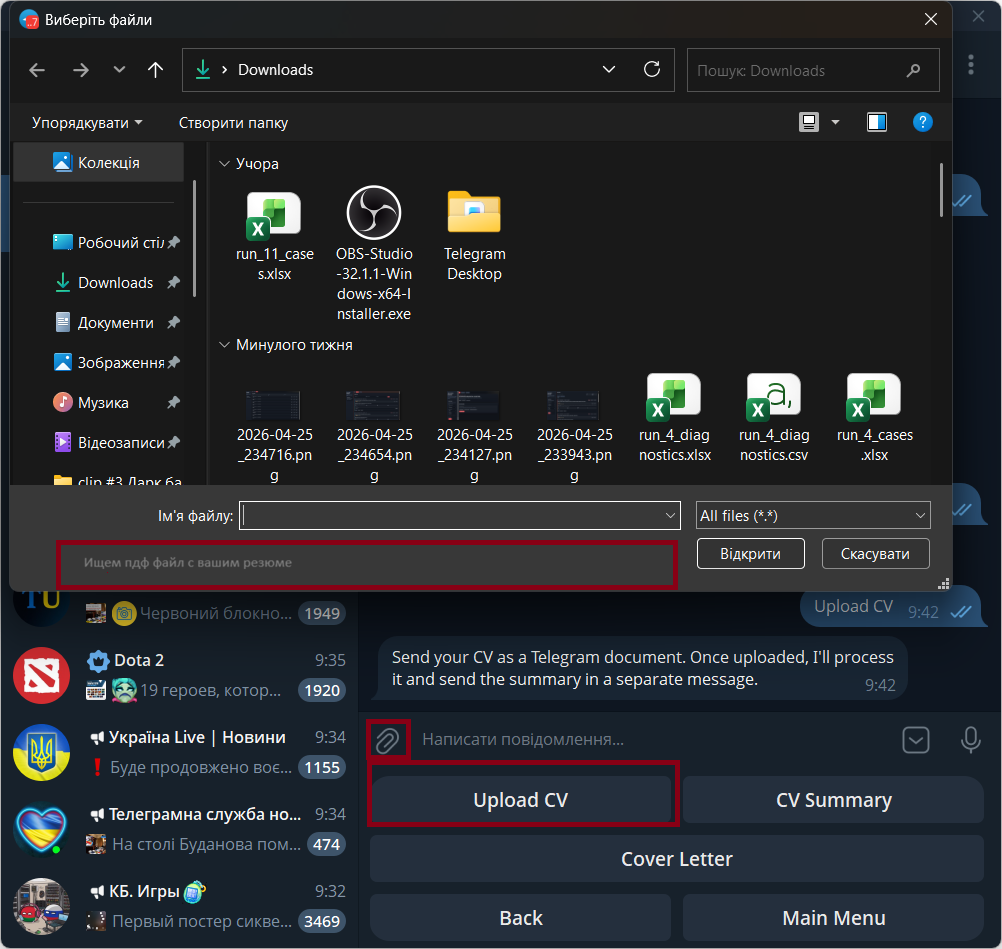
- Add a caption if needed
- Tap Send
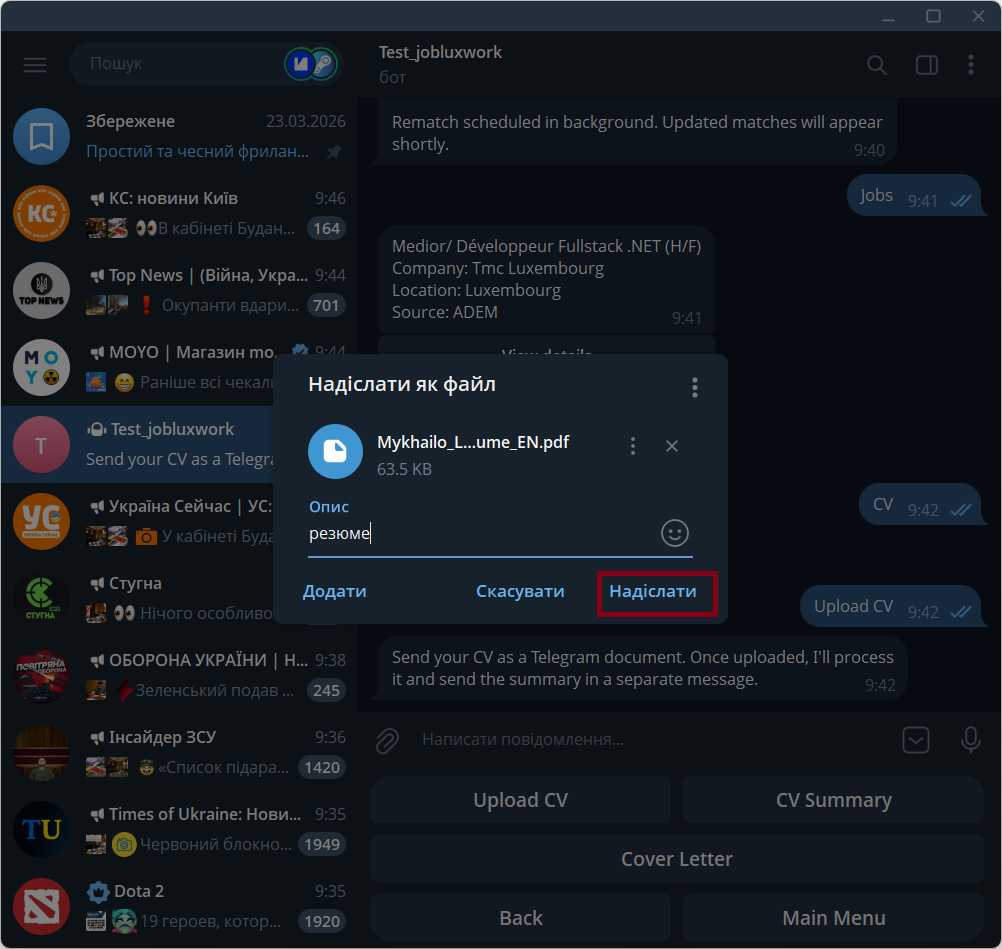
The bot will accept your CV, run processing, and send the result as a separate message.
7. Getting Your CV Summary
Once processing is done, the bot sends a summary message with:
- The main summary
- Key skills
- Highlights
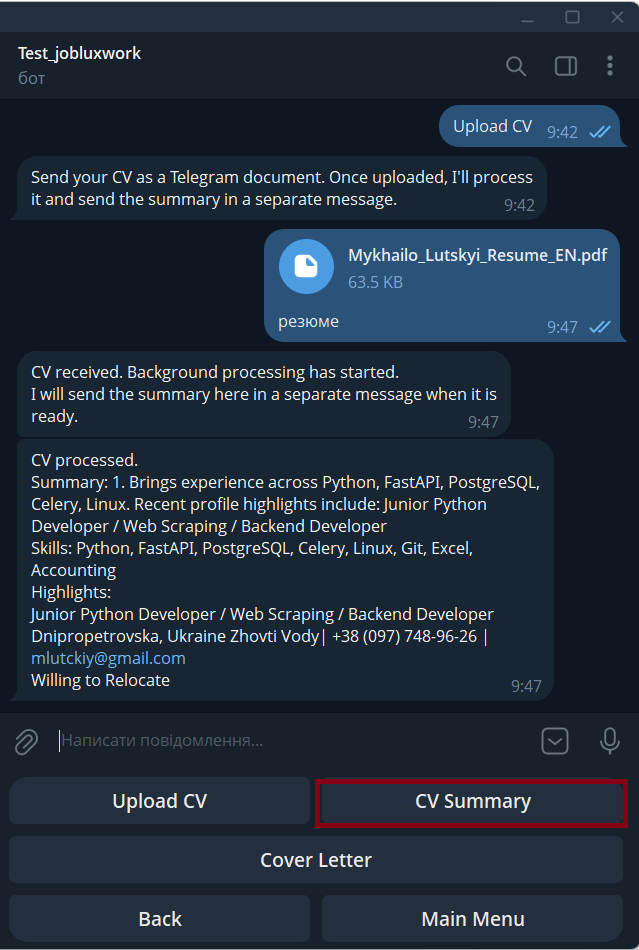
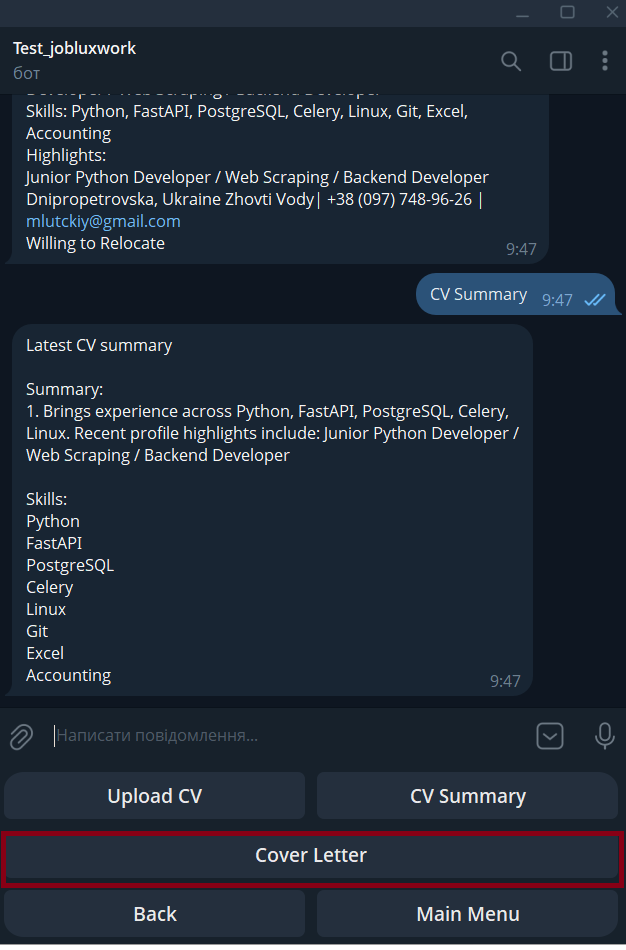
To re-open the latest summary:
- Go to the CV section
- Tap CV Summary
The bot will display your latest saved summary.
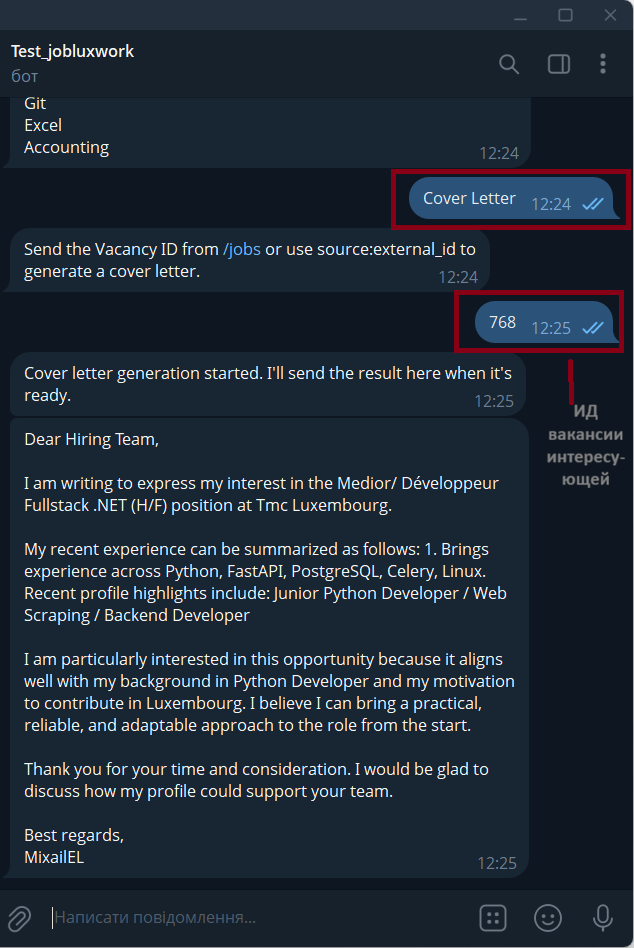
8. Generating a Cover Letter
To generate a cover letter:
- Go to the CV section
- Tap Cover Letter
- The bot will ask for a vacancy ID from /jobs, or in source:external_id format if using an external ID
- Send the vacancy ID
- The bot generates the cover letter and sends it as a separate message
9. Premium
The Premium section shows information about premium access and your current subscription status.
10. Troubleshooting
If the bot doesn't show vacancies or results look incorrect, check that:
- Your Profile is filled in
- Your Filters aren't too narrow
- You've uploaded a CV
- There are current vacancies matching your criteria
Quick Flow
/start → choose language → Profile → Filters → Jobs → CV → CV Summary / Cover Letter
Tips
For better job matches, we recommend:
- Filling your profile as specifically as possible
- Using relevant keywords
- Avoiding overly broad or contradictory filters